
QUBIC BLOG POST
Qubic Is Live on Ledger: How to Store QUBIC on a Hardware Wallet
Written by

The Qubic Team
Published:

Listen to this blog post
Self-custody just got real for QUBIC holders. The Qubic Ledger app is live, which means you can finally move your $QUBIC off exchanges and hot wallets and into cold storage where it belongs.
For a project that's been gaining serious traction this year, from Dogecoin mining integration to record-breaking transaction speeds, this was a missing piece. But, not anymore.
Why the Qubic Ledger Integration Matters
If you've been holding QUBIC on a software wallet or, worse, leaving it sitting on an exchange, you've been carrying unwanted risk. Hardware wallets keep your private keys offline. No phishing attack, no browser exploit, no compromised extension can touch your funds when your keys never leave the device.
Ledger is the most widely used hardware wallet in crypto, so this integration immediately opens up secure QUBIC cold storage to a massive user base. It also signals something about where Qubic is headed. Projects that get listed on Ledger tend to be the ones building real infrastructure, not hype. For a Layer 1 that trains AI through its mining process and processes transactions with zero fees, cold storage support was long due.
Supported Ledger Devices for QUBIC
The Qubic Ledger app is supported on these devices:
Ledger Nano X
Ledger Nano S Plus
Ledger Nano Gen 5
Ledger Flex
Ledger Stax
One thing to note: the original Ledger Nano S (the legacy model) is not supported. Ledger has been phasing out Nano S support due to memory limitations, so if you're still running one, you'll need to upgrade before you can store QUBIC on hardware.
How to Set Up the Qubic Ledger App
Setup is straightforward. Here's the process:
Step 1: Install the Qubic App on Your Ledger
Open the Ledger Wallet desktop application (formerly Ledger Live), search for "Qubic" in the app catalog, and install it. If you don't have Ledger Wallet installed yet, download it from ledger.com first. Same process as any other Ledger app. You can also follow Ledger's official app installation guide if you need help.
Step 2: Open the Qubic Ledger Web Interface
Head to hw.qubic.org in Chrome or Edge. This is the dedicated web wallet for interacting with your Ledger. Other browsers won't work here because the connection relies on WebHID, which only Chrome and Edge support right now.
Step 3: Connect Your Ledger Device
Plug your Ledger into your computer via USB, launch the Qubic app on the device itself, and click "Connect with USB" on the web page. Select your device when prompted.
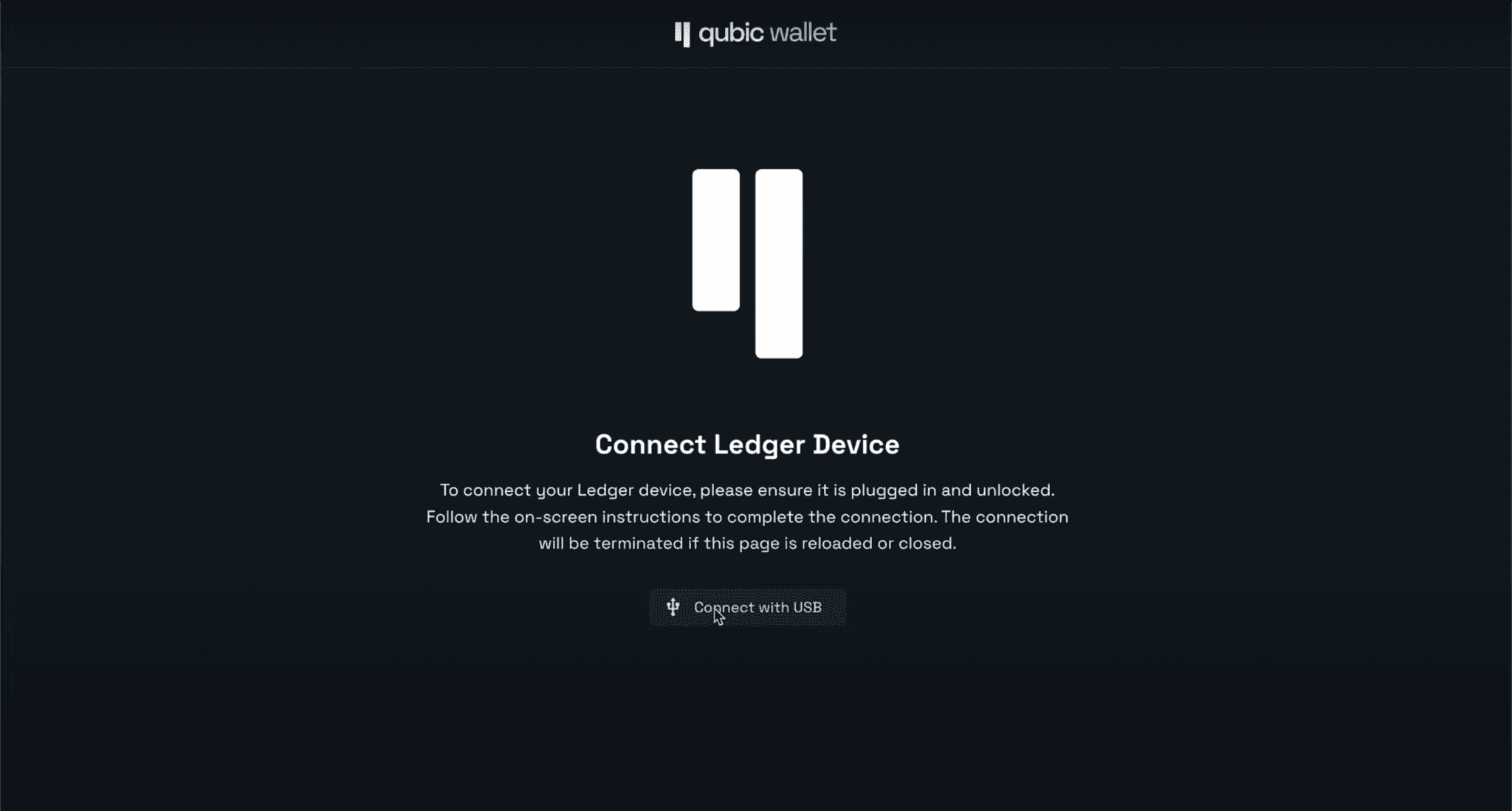
The hw.qubic.org interface with the "Connect with USB" button. Open this in Chrome or Edge.
Step 4: Generate Your QUBIC Address
Once connected, the Addresses tab will be empty. Hit "Generate New Address" to create a new one or reveal addresses you've already set up with that device. Your QUBIC address is what you'll use to receive tokens from exchanges or other Qubic wallets.
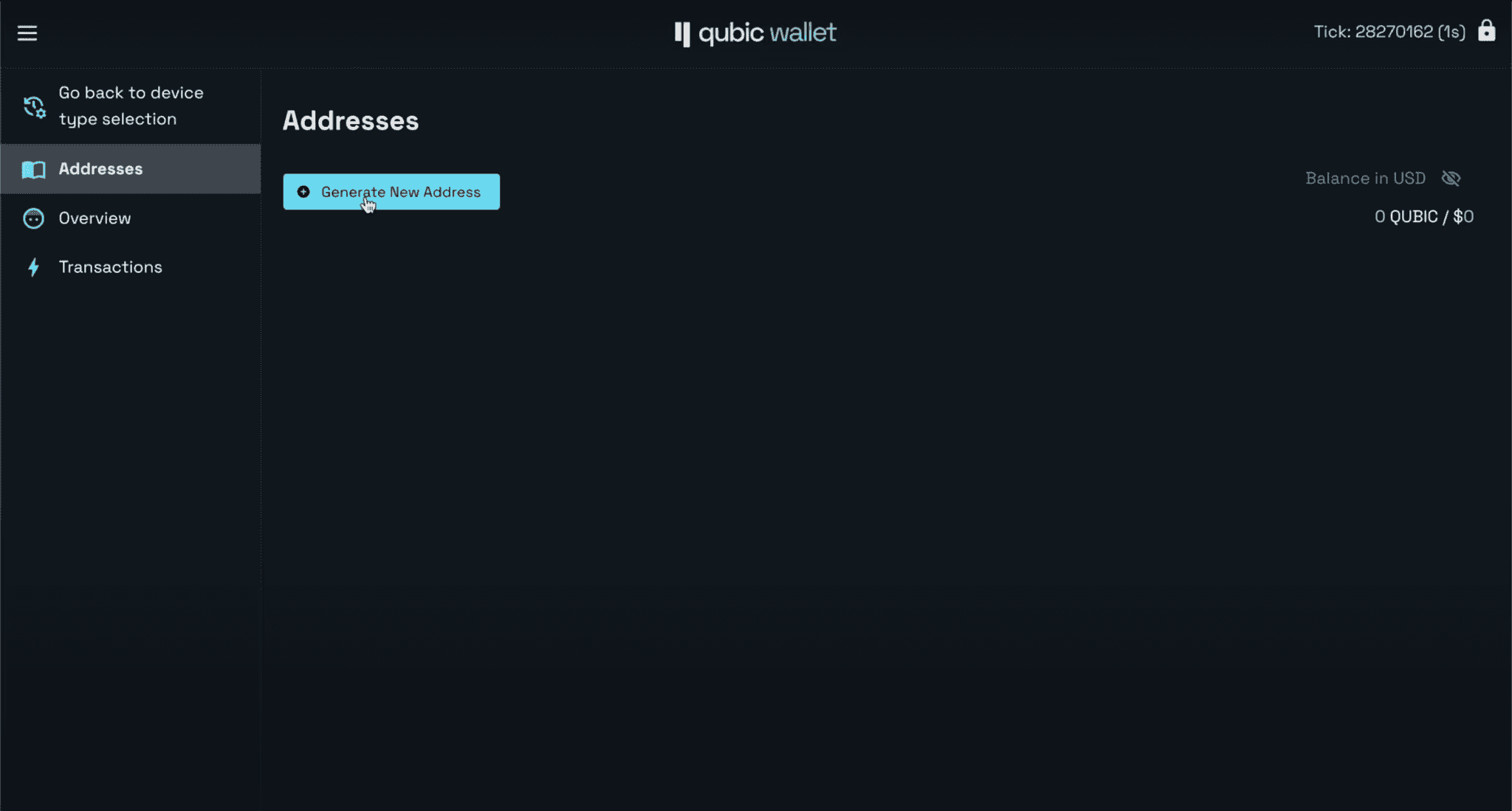
Click "Generate New Address" to create or reveal your QUBIC addresses.
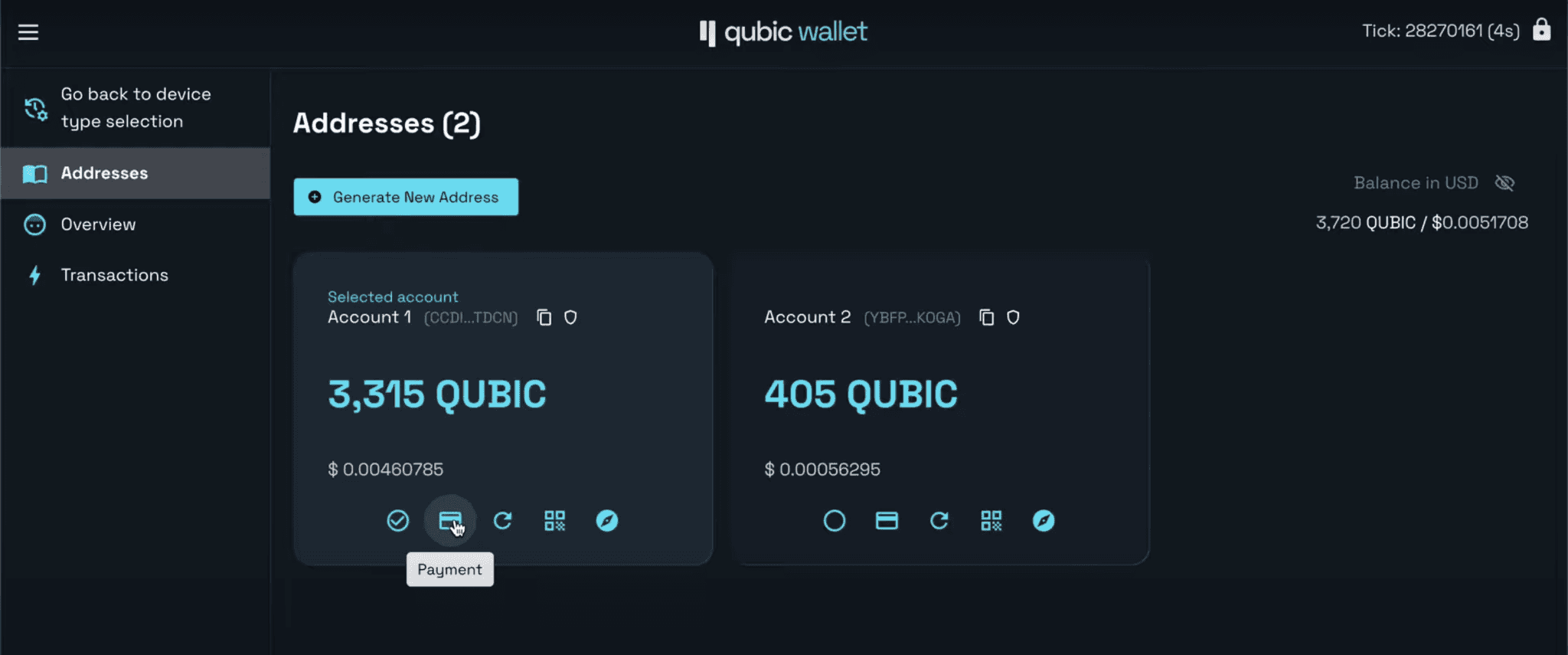
Your QUBIC addresses and balances after generating an address.
Step 5: Send and Receive QUBIC
From here, you can receive QUBIC to your Ledger address or send funds out. To send, enter the recipient address and amount, click "Sign with Ledger and Send," and confirm the transaction on your device. You'll get to review every detail on the Ledger screen before approving.
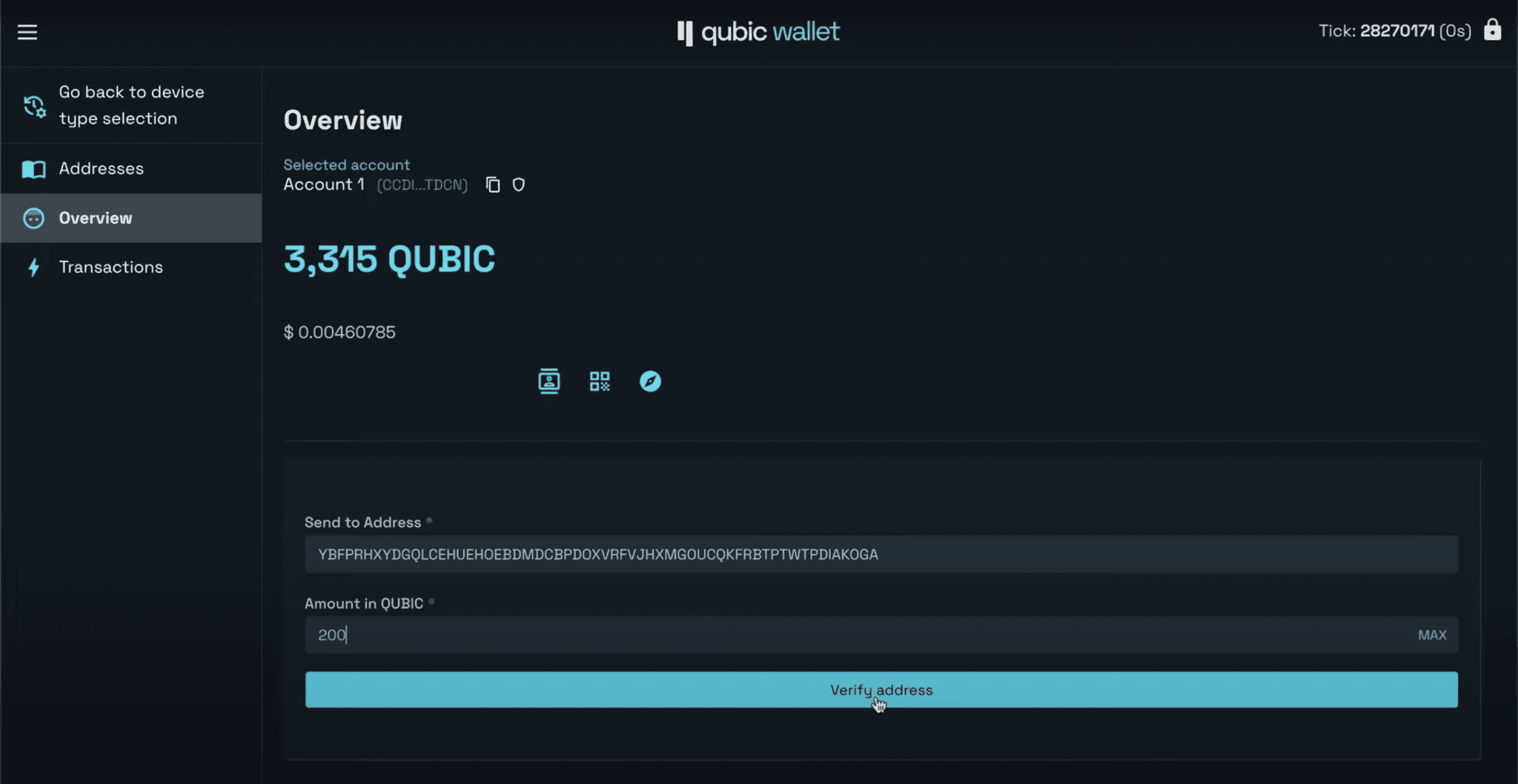
Enter the recipient's address and the amount of QUBIC you want to send.
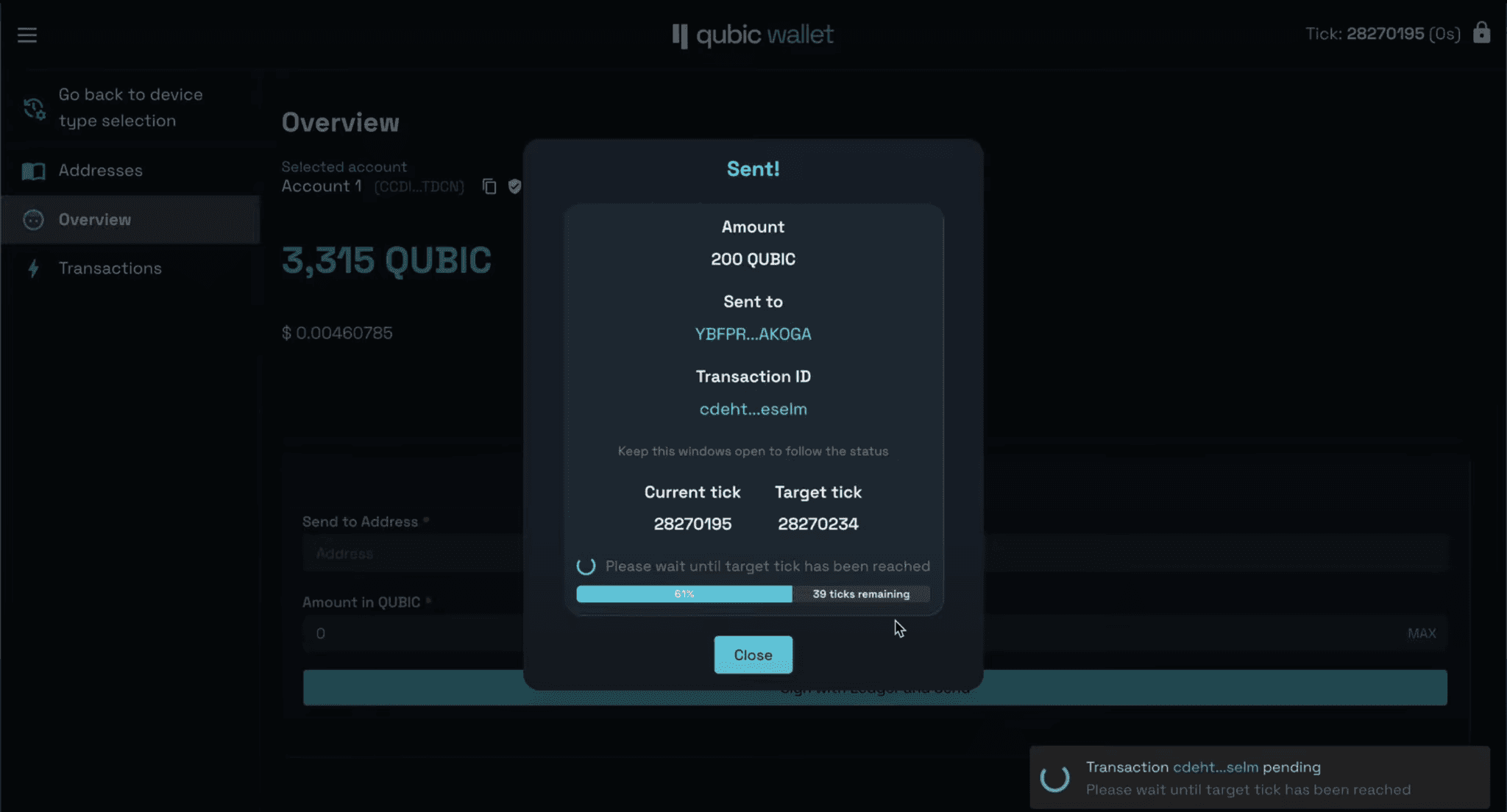
After signing with your Ledger, a confirmation modal shows the transaction status.
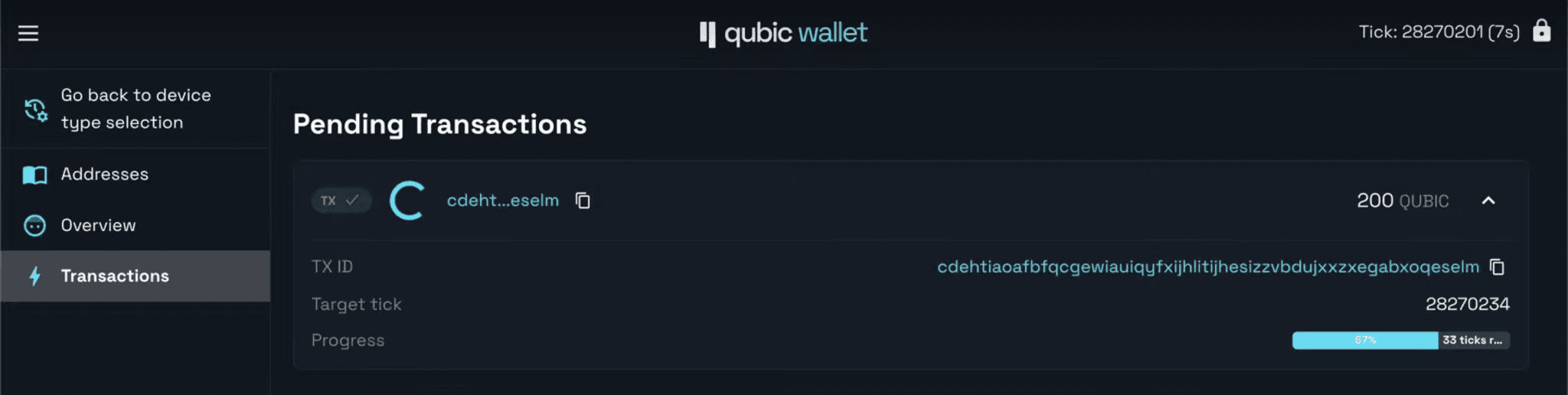
You can also track all your transactions in the Transactions tab.
That's it. The whole process takes a few minutes if your Ledger firmware is already up to date.
Current Limitations to Keep in Mind
Swapping QUBIC within the Ledger Wallet app is not available yet. You won't be able to exchange it for other tokens directly through Ledger Wallet the way you can with ETH or BTC. If you're looking to buy QUBIC, check the available exchanges and on-ramp options first, then transfer to your Ledger for secure storage.
Also, since the web wallet at hw.qubic.org relies on a USB connection and WebHID, this is a desktop-only workflow for now. Make sure you're using Chrome or Edge, and that your Ledger firmware and the Qubic app are both up to date before you start.
What This Means for QUBIC Holders
Ledger support is the kind of infrastructure upgrade that doesn't grab headlines the way a new partnership or token listing does, but it matters more than most of those things. Secure self-custody is a baseline requirement for any serious crypto project, and QUBIC holders finally have that option with the most trusted hardware wallet brand in the space.
If you own a compatible Ledger device, there's no reason to wait. Get the Qubic Ledger app installed, move your tokens to cold storage, and remove the risk of holding tokens on exchange. If you run into any issues, the Qubic Discord community is the best place to get help.